
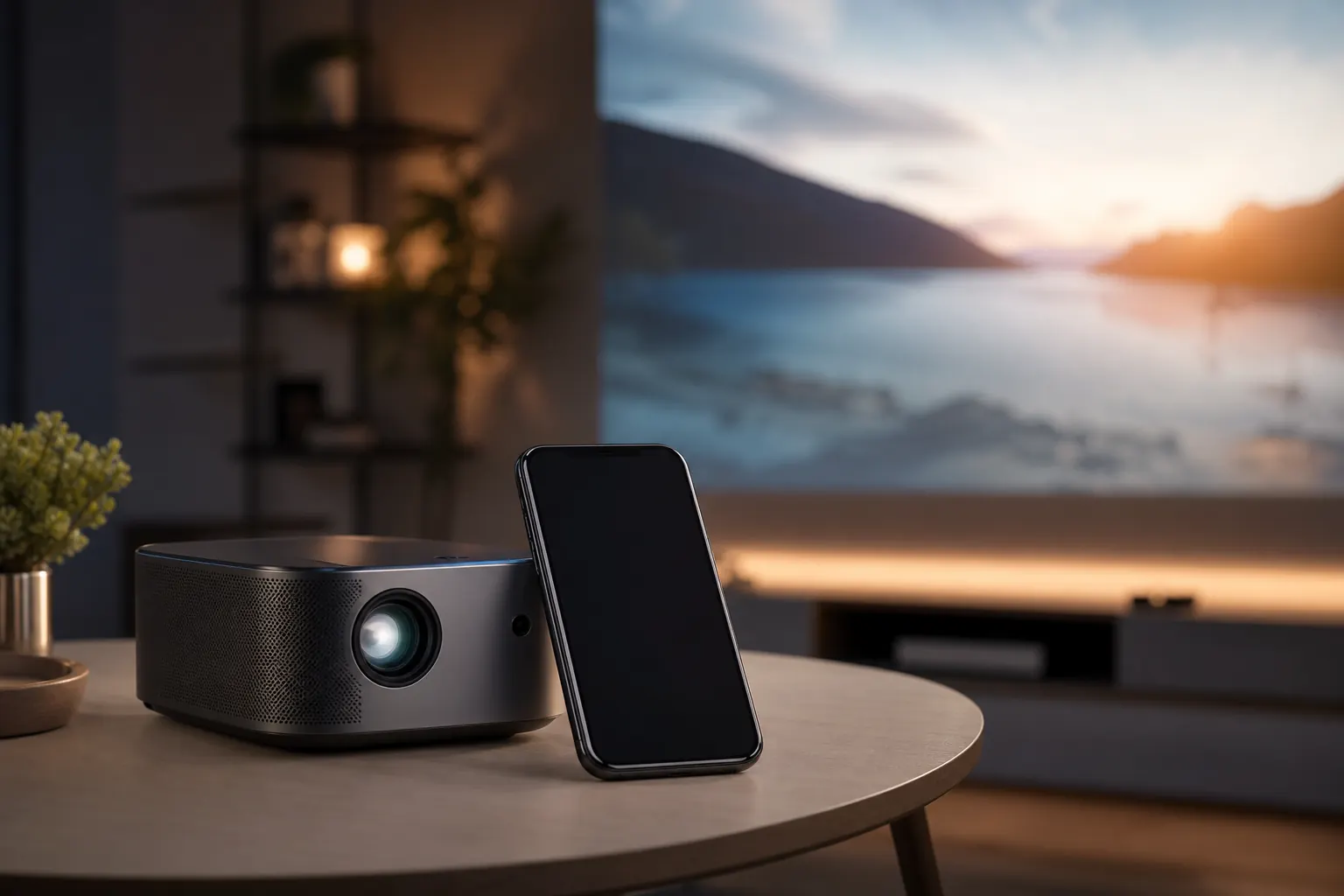
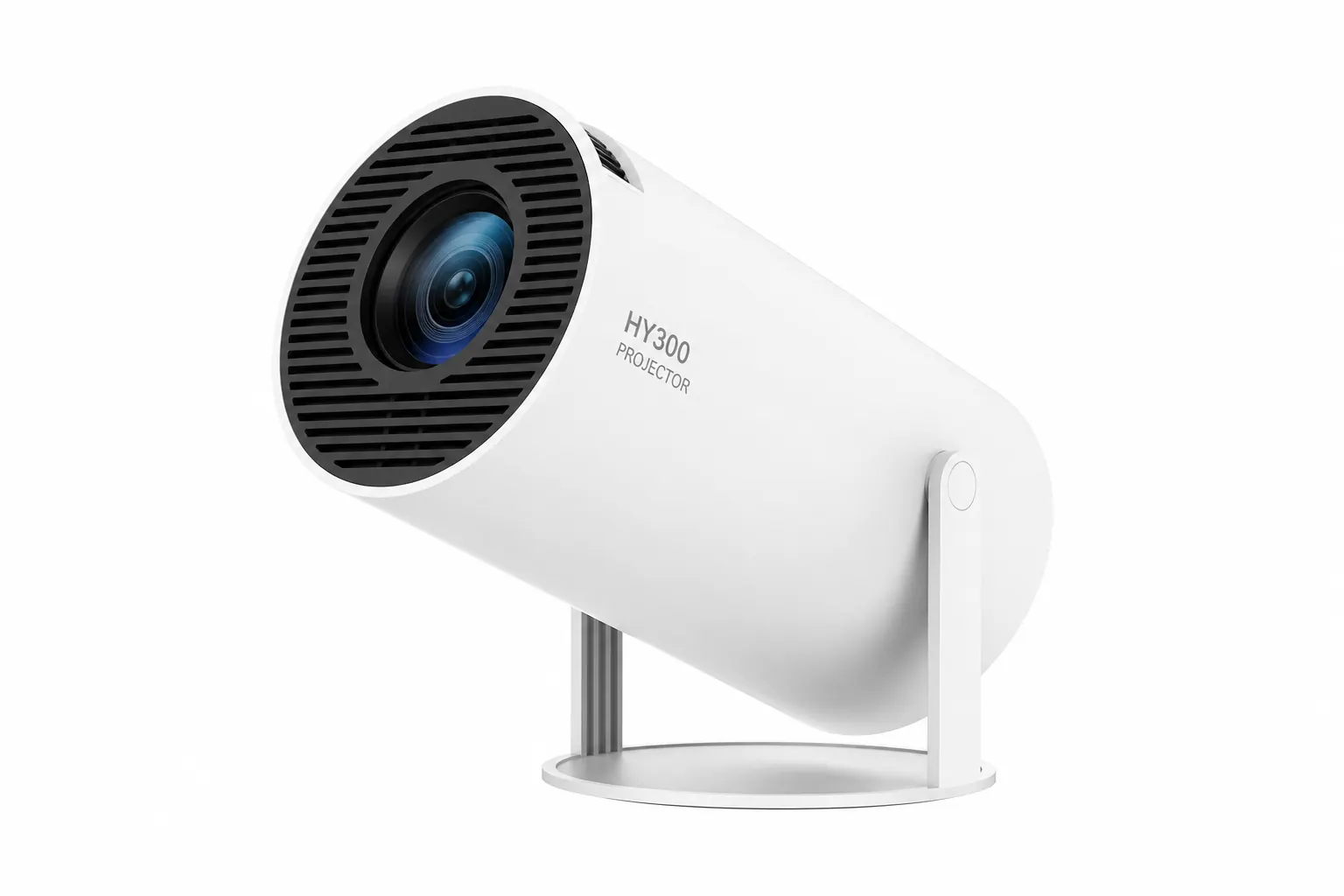
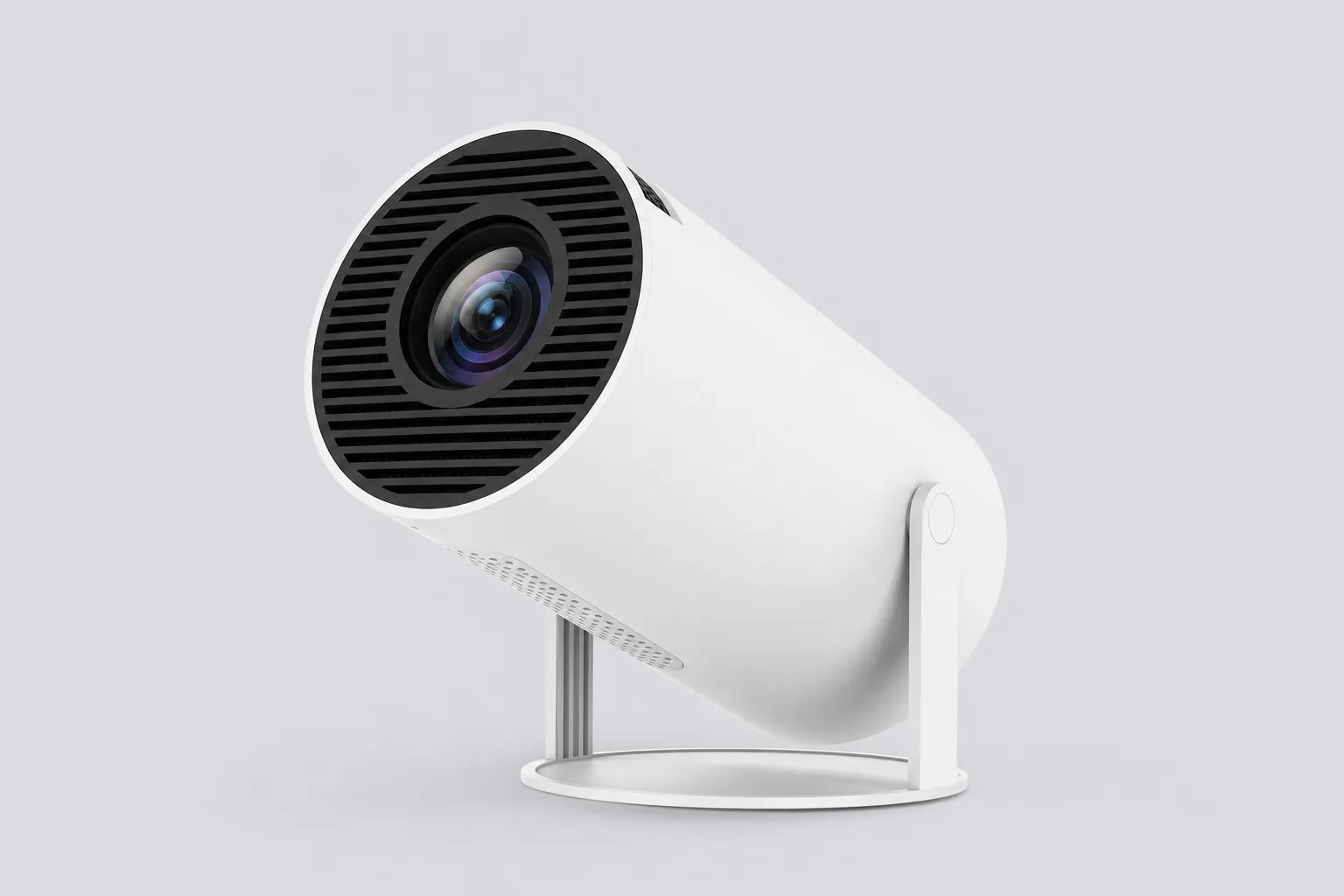
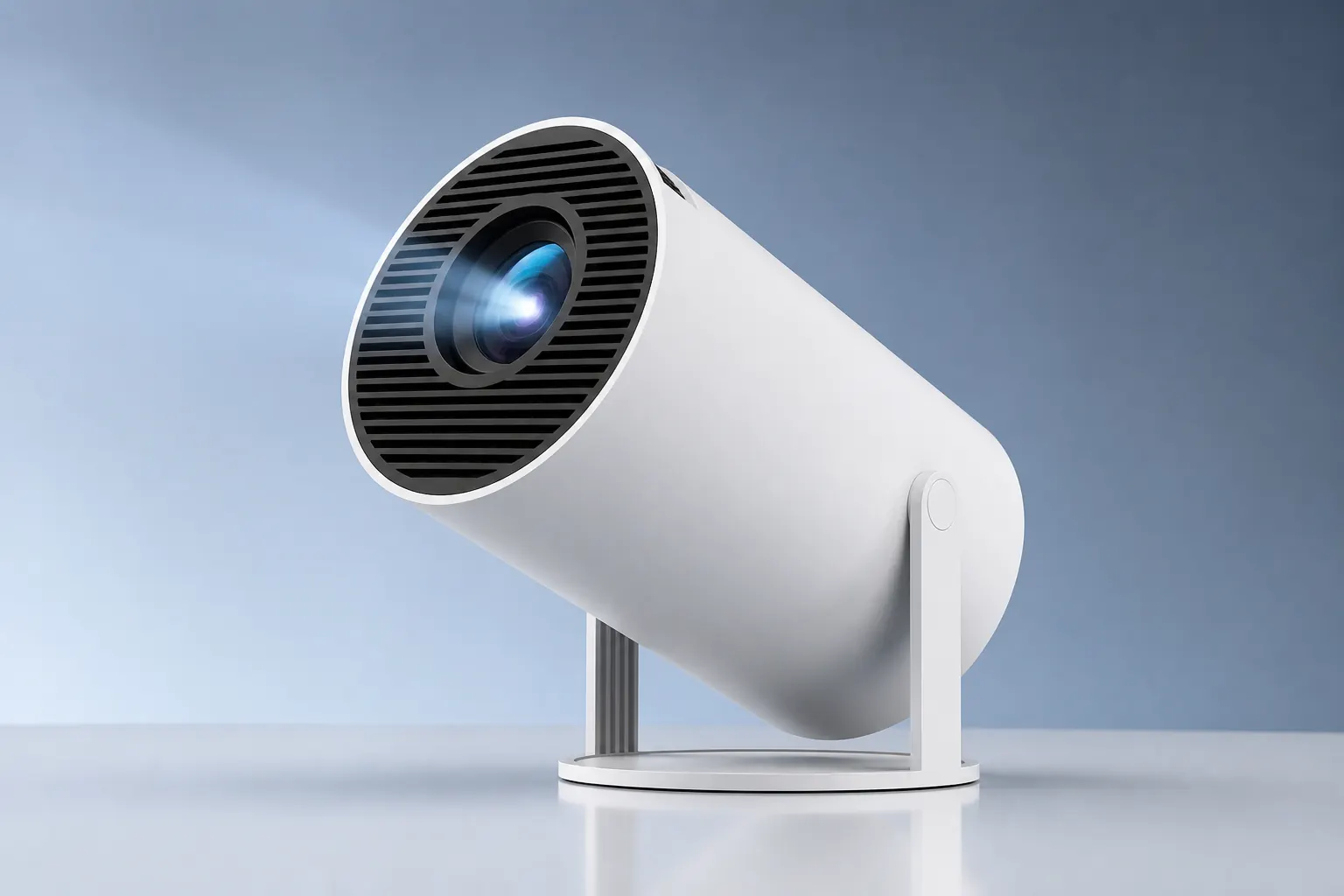
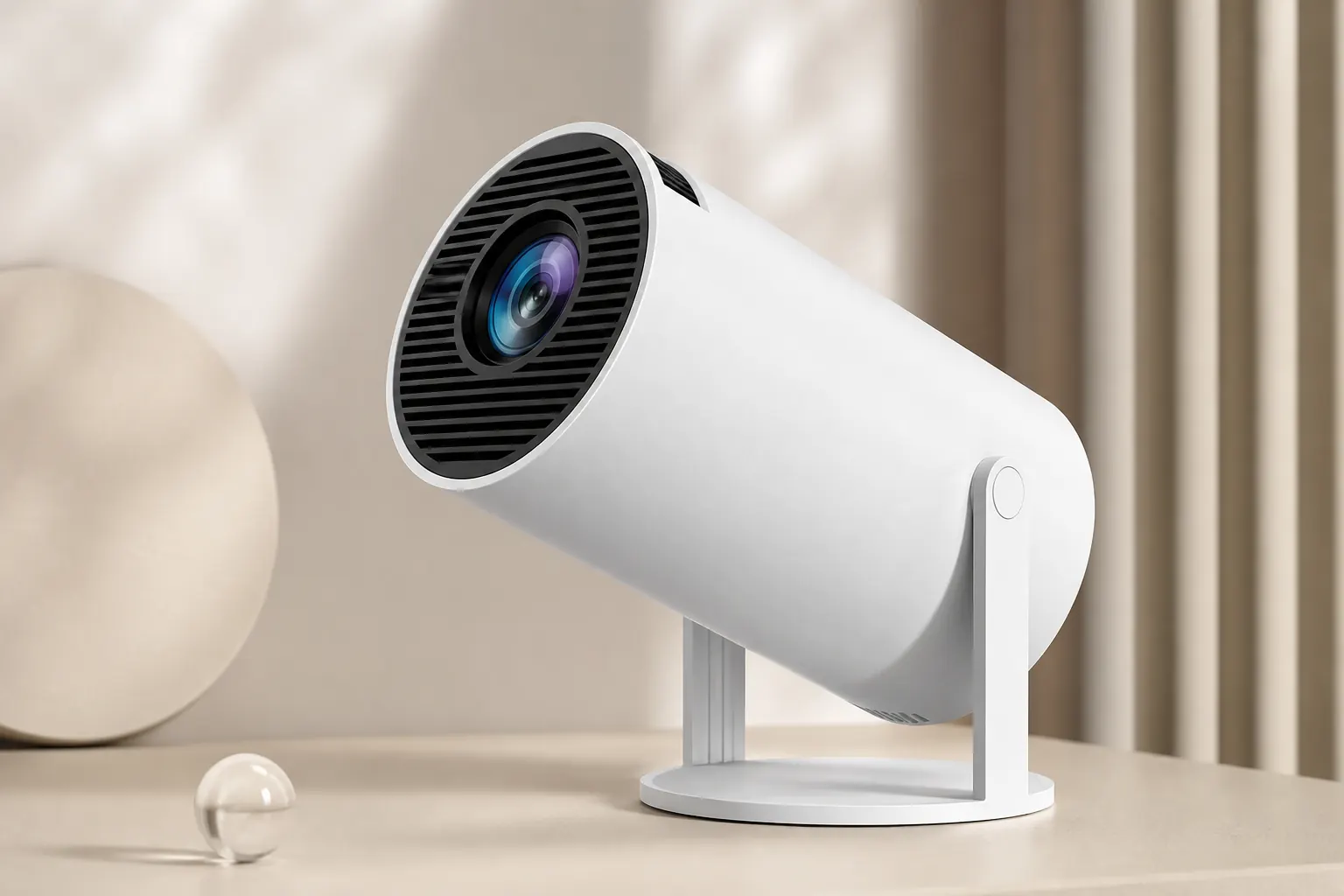
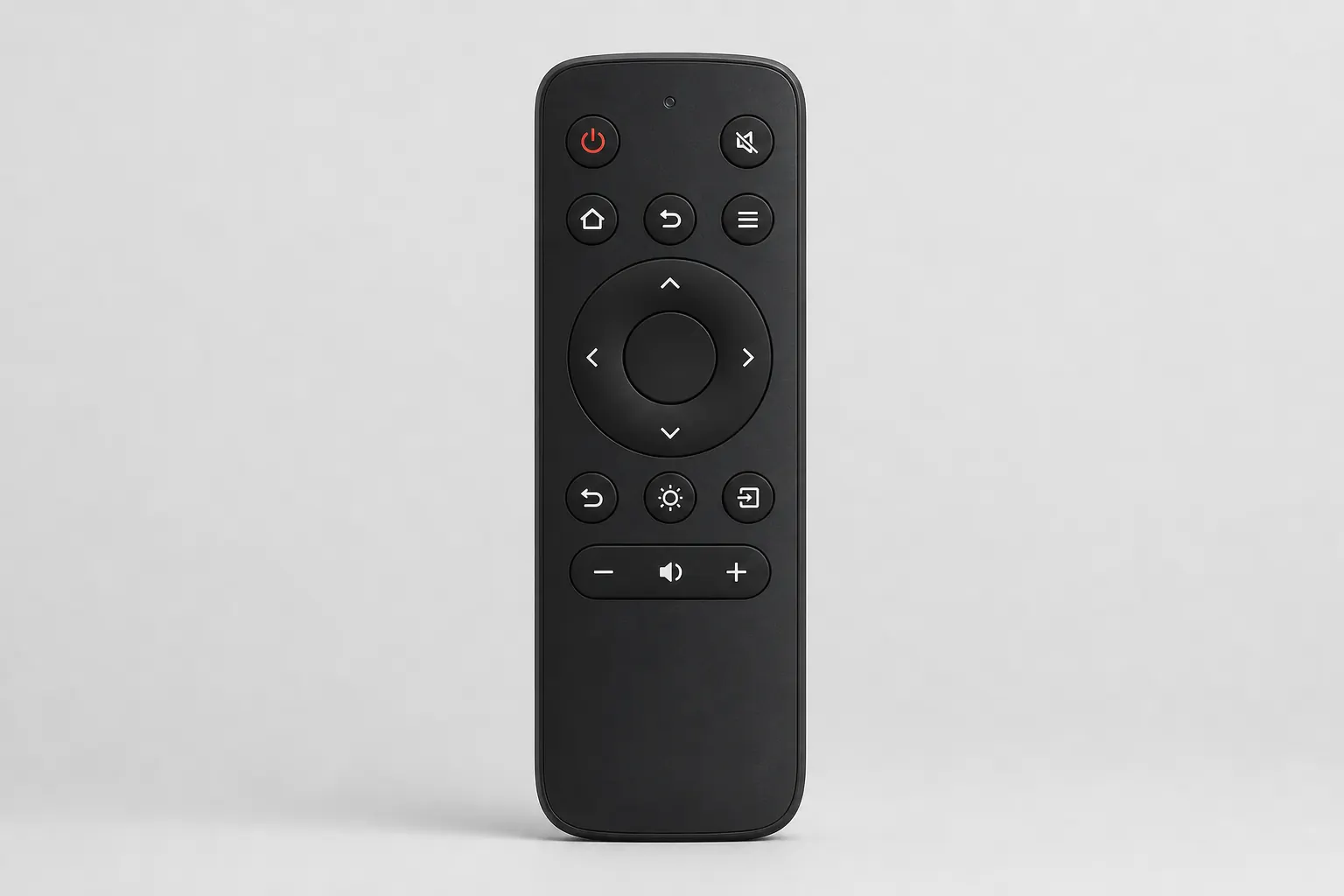
The HY300 Projector is as much a software device as a hardware one. Built-in Android runs streaming apps natively. AirPlay and Miracast mirror your phone screen wirelessly. Companion remote apps turn your mobile device into a trackpad when the IR remote slides under the couch cushion. This guide covers every app-related workflow so you spend less time troubleshooting and more time watching.
Hardware context lives on our specifications page. After firmware changes, revisit this guide — updates sometimes reset casting permissions. Check firmware notes before major Android jumps.
Built-in Android apps
The HY300 ships with a customized Android interface. Open the app drawer and install Netflix, YouTube, Disney+, Prime Video, and Spotify from the built-in store or sideloaded APKs depending on your firmware batch. Apps run directly on the projector — no Chromecast or Fire Stick required.
Sign into each service once. Storage is limited, so install only what you watch weekly. Clear app cache periodically under Android Settings when streams stutter. Android 14 on the Pro variant handles newer app requirements better than Android 11 on Standard units.
Companion remote app
Many HY300 batches support a companion remote app — search your app store for the vendor name printed on your quick-start card. The app provides a virtual trackpad, keyboard input, and volume controls over the same Wi-Fi network. Pair by scanning a QR code on screen or entering the projector IP address.
Phone remote shines when the projector sits on a high shelf or ceiling tilt. Typing Wi-Fi passwords and search queries is faster than arrow-key navigation. Keep phone and projector on the same network band — 5 GHz preferred. If the app disconnects, reboot both devices and re-pair.
AirPlay from iOS
AirPlay mirrors iPhone and iPad screens to the HY300 when both share Wi-Fi. Open Control Center, tap Screen Mirroring, select the HY300 from the device list. Video apps like YouTube may offer an AirPlay button inside the player for direct casting without full mirroring.
Latency is acceptable for video but noticeable for mobile gaming. Portrait mirroring leaves pillarboxing — rotate to landscape for films. If the HY300 does not appear, enable AirPlay in projector settings and confirm no guest network isolation on your router.
Miracast and Android
Miracast handles Android phone and Windows laptop mirroring. On Android, look for Cast, Smart View, or Wireless Display in quick settings. On Windows, press Win+K and select the projector. Miracast does not require internet — only local Wi-Fi direct or shared network.
Some routers block Miracast discovery between bands. Connect both devices to 2.4 GHz temporarily if 5 GHz fails. Firmware updates occasionally improve Miracast stability — a common fix for disconnect-every-ten-minutes complaints in owner reviews.
Installing new apps
Use the built-in app store when available. For apps missing from the catalog, sideload APKs via USB drive — download the APK on a PC, copy to FAT32 USB, insert into USB-A, and open with a file manager. Enable unknown sources only during install, then disable.
A USB mouse makes sideloading painless. Navigate to the APK, tap install, accept permissions. Not every APK is optimized for TV remote navigation — test with free apps before buying premium versions. Kodi and VLC are popular HY300 additions for local media playback.
Bluetooth audio pairing
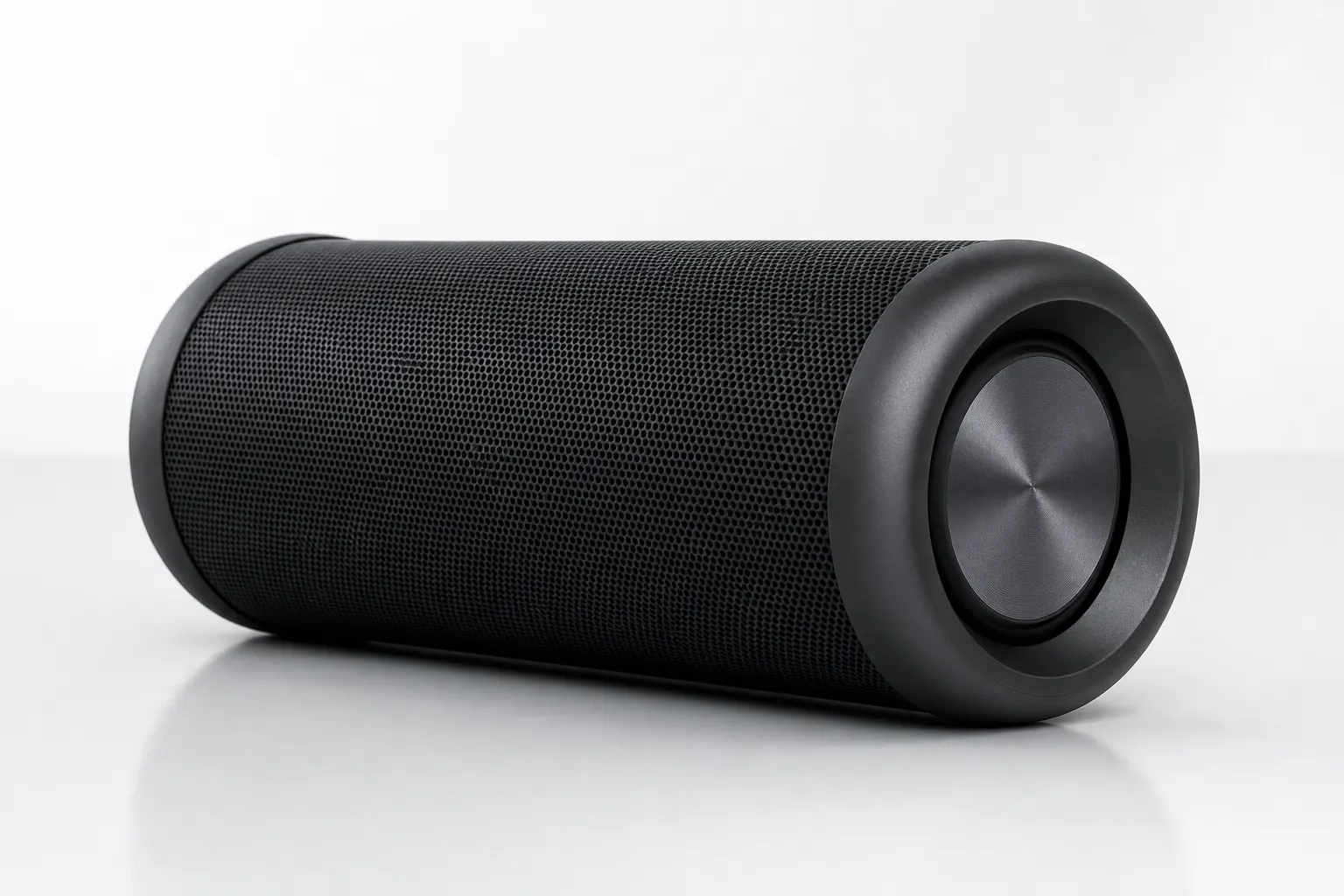
Open Settings → Bluetooth on the HY300, put your speaker in pairing mode, select it from the list. Audio routes to the external speaker while video stays on the wall. Re-pair after firmware updates — Bluetooth bonds sometimes clear.
Bluetooth 5.0 on Standard and 5.4 on Pro variants improve range and stability. Place the speaker within line of sight for best results. Lip-sync delay is rare but possible — if lips drift, try a different speaker or wired 3.5 mm if your batch includes the jack.
HDMI wired fallback
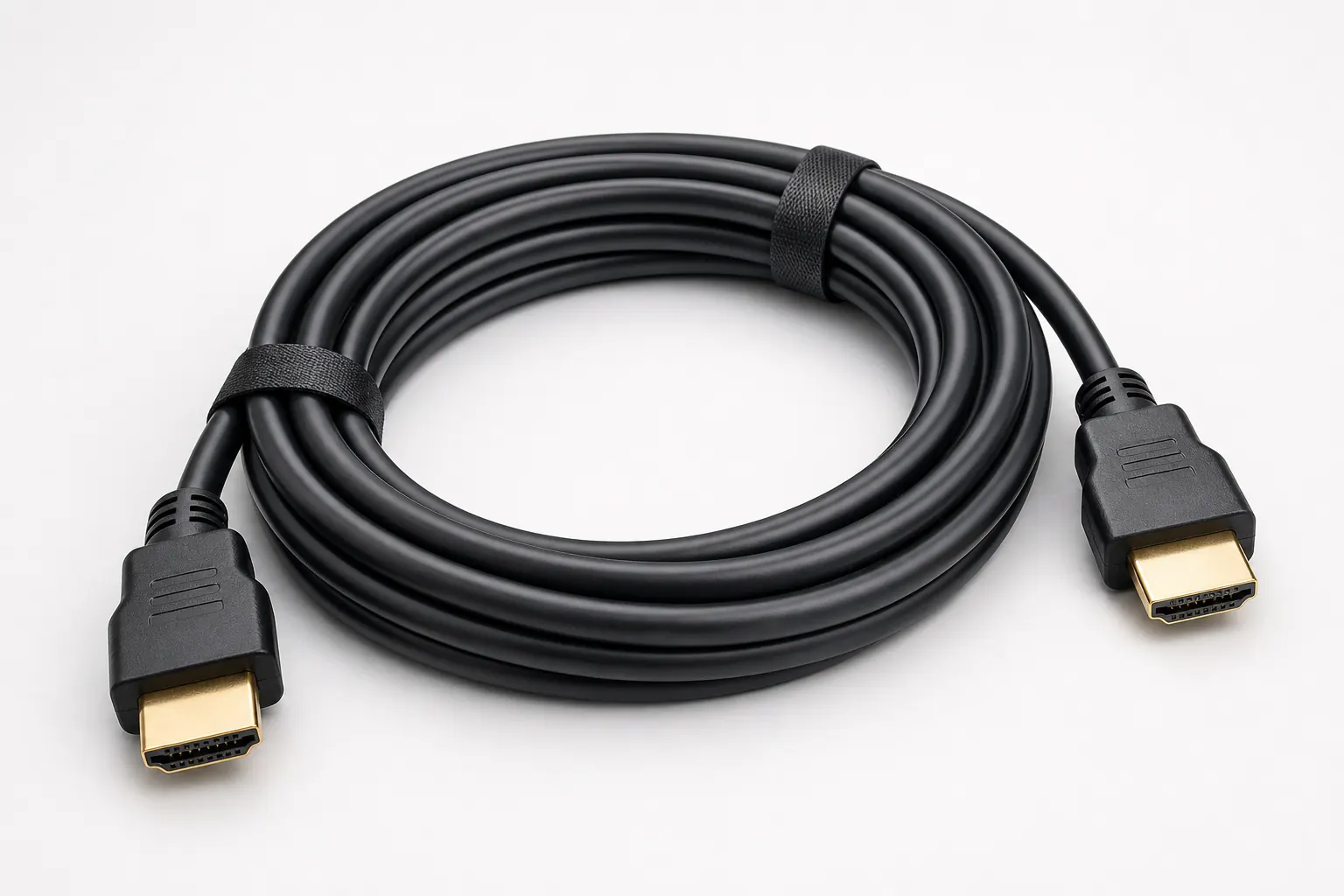
When wireless casting fails or latency matters, connect HDMI from laptop or console to the HY300 rear port. The projector switches input automatically or via the source button on the remote. 4K input scales to native 720p output.
HDMI carries audio too — useful when Bluetooth is paired to a different device. For presentations, duplicate your laptop display and set resolution to 1080p for clean scaling. Gaming works but competitive titles need wired for acceptable lag.
Network requirements
Dual-band Wi-Fi is essential for HD streaming apps. Place the router within reasonable range. Avoid microwave interference on 2.4 GHz. Ethernet is unavailable on the HY300 — Wi-Fi is the only network path for OTA updates and app downloads.
Guest networks with client isolation block phone-to-projector discovery. Use your main LAN for casting. VPNs on the phone sometimes hide casting targets — disable temporarily during setup.
Troubleshooting app issues
App crashes on launch: clear cache, reinstall, or check firmware compatibility. Casting not found: reboot projector and phone, verify same Wi-Fi, update firmware. Remote app won't connect: confirm IP, disable mobile data, check firewall rules on mesh networks.
Streaming buffers: move closer to router, switch bands, or lower quality in the app settings. Netflix DRM errors: update the Netflix app and firmware together. When stuck, plug a USB mouse and keyboard for direct Android navigation.
Best app workflow
Day one: complete Android setup, install two streaming apps, pair Bluetooth speaker, install companion remote on your phone. Day two: test AirPlay or Miracast from your primary phone. Day three: sideload any specialty apps. Save HDMI for laptops and gaming.
The HY300 app experience rewards preparation. Built-in Android eliminates dongles. Wireless casting covers quick sharing. The companion remote rescues lost IR remotes. Read owner reviews for app-specific tips and auto adjustment for image tuning after casting.