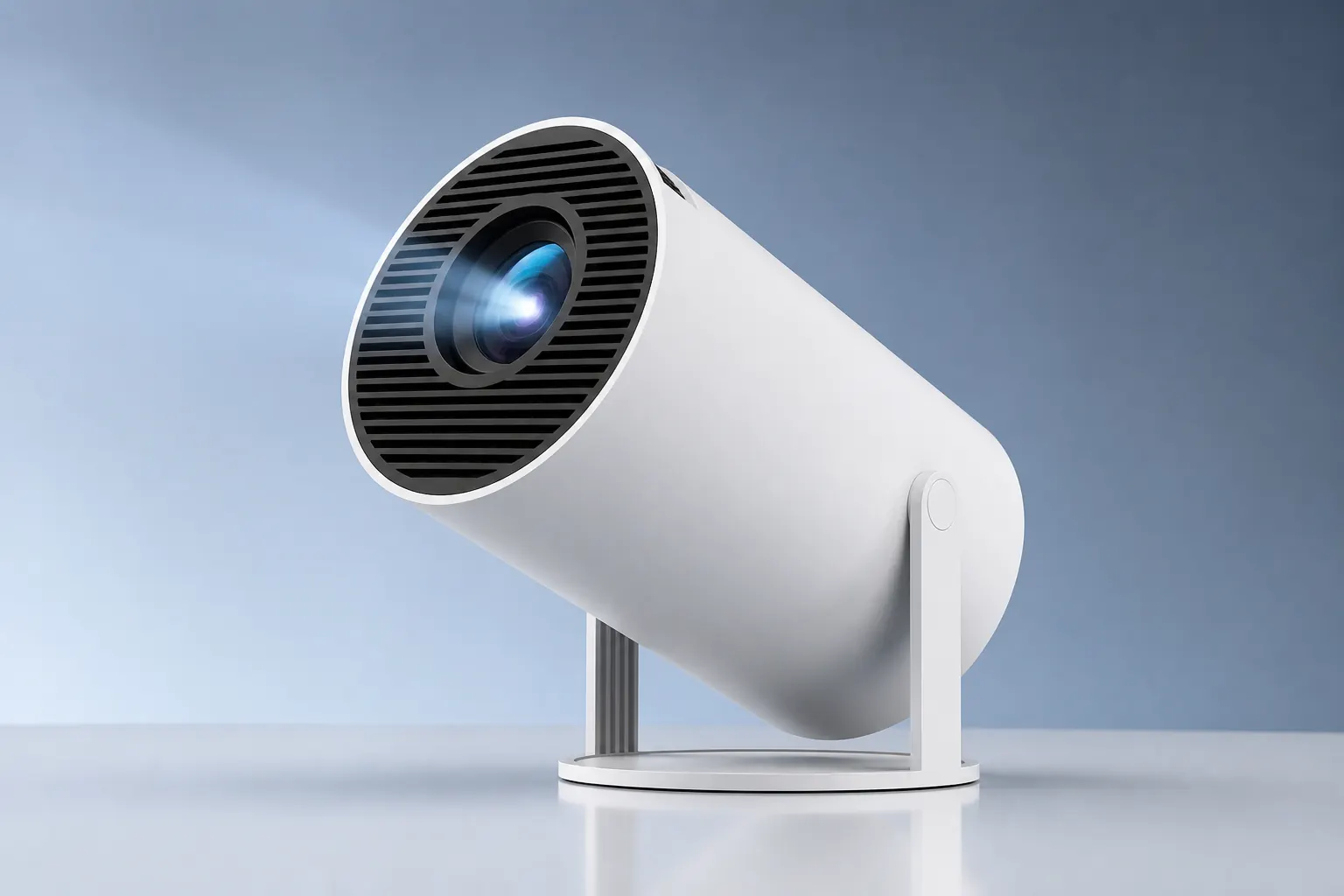
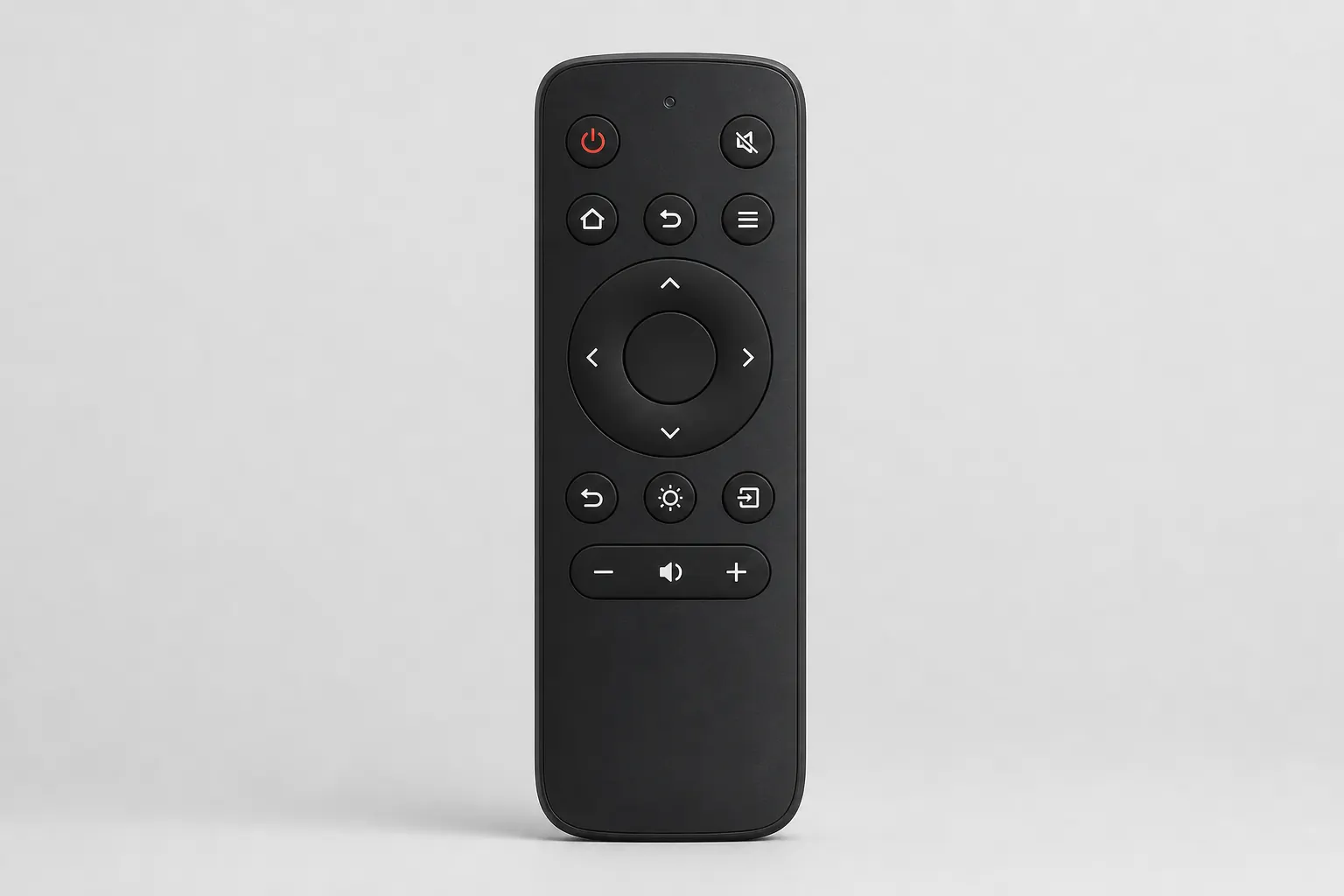
Firmware is the invisible layer that keeps your HY300 Projector stable — Android version, projection drivers, keystone algorithms, and Wi-Fi stack all live in software. Updating correctly improves streaming compatibility, patches security holes, and occasionally unlocks picture presets. Updating incorrectly can brick a perfectly good unit. This guide explains what ships on each variant, how to update safely, and what to do when something goes wrong.
Confirm your hardware on our specifications page before downloading files. After updating, revisit auto adjustment settings because keystone behavior may reset to defaults.
Android version basics
The HY300 runs a customized Android TV-style OS on most units. Standard and Plus models typically ship with Android 11. The Pro variant commonly ships with Android 14. The Android version determines which apps install cleanly, which security patches apply, and how Bluetooth audio pairs.
Check your version under Settings → About → Android version on first boot. Write it down alongside the build number — you need both if you contact support or search for compatible APKs. Do not assume your unit matches a friend's HY300; firmware batches vary by manufacturing run and seller.
What updates include
HY300 firmware packages usually bundle three layers: the Android system image, the projector driver (keystone, color, fan curves), and sometimes pre-installed app refreshes. OTA updates over Wi-Fi deliver all three when the manufacturer publishes a new build.
Updates may improve auto keystone speed, reduce fan noise under load, fix Miracast disconnects, or add display presets. They rarely change native 720p hardware — resolution is panel-limited. Read release notes when available; skip optional updates if your unit already streams reliably.
Over-the-air updates
The safest path is OTA update through the built-in system updater. Connect to stable Wi-Fi — preferably 5 GHz near your router. Go to Settings → System → System update (exact menu labels vary by firmware). If an update appears, ensure the unit is plugged into wall power, not a sagging power strip.
Download completes first; installation reboots the projector. Do not unplug during installation. The progress bar may freeze for several minutes — normal. Expect ten to twenty minutes total. The fan runs loudly during flashing. When the home screen returns, re-check Wi-Fi and re-pair Bluetooth speakers.
USB manual flashing
Some sellers distribute USB firmware files for manual recovery when OTA fails. Format a FAT32 USB drive, copy only the vendor-provided package to the root directory, insert into USB-A, and follow the recovery key combo for your batch — often holding Volume Up at boot.
Only flash files matched to your exact model and Android baseline. Cross-flashing Pro Android 14 packages onto a Standard Android 11 unit risks a boot loop. Verify checksums when the vendor provides them. USB recovery is a last resort, not a routine upgrade path.
Before you update
Preparation prevents bricked units. Plug into wall power — battery backups are unnecessary but the adapter must stay connected. Note your current build number. Close streaming apps. Disconnect HDMI sources. If you sideloaded apps, export APKs or accept that a full system image may wipe user data.
Photograph your picture settings if you spent time tuning them. Updates often reset to defaults. Schedule updates before movie night, not five minutes before guests arrive. A failed update mid-party is memorable for the wrong reasons.
After updating successfully
Run through a quick checklist: confirm Android version incremented, reconnect Wi-Fi, test Netflix or YouTube playback, verify auto keystone, re-pair Bluetooth audio, and test AirPlay or Miracast from your phone. Open our app guide if the companion remote app needs reinstalling.
Reinstall sideloaded apps if the update wiped storage. Re-apply picture presets. If fan noise changed, a driver update adjusted thermal curves — usually intentional. Give the unit one full movie to stabilize after a major jump.
Troubleshooting failed updates
Boot loop after update: power off, unplug thirty seconds, power on. If Android animation repeats endlessly, attempt USB recovery with the correct vendor package. Download stuck on OTA: switch Wi-Fi bands, reboot router, retry overnight when bandwidth is free.
Update downloaded but will not install: clear cache in the system updater app if accessible, or free storage by uninstalling unused apps. Error codes vary by batch — search the code with your build number. When in doubt, contact the seller before experimental flashes from forum threads.
Variant-specific notes
Standard: Android 11 OTA only — do not force Pro images. Plus: May bundle app updates with system OTAs; pre-installed Netflix or YouTube may refresh. Pro: Android 14 receives longer security support; Bluetooth 5.4 stack updates matter for speaker pairing. Ultra: Shares Pro firmware channels on many batches — verify build string, not marketing name.
Security and sideloading
Enable unknown sources only when installing trusted APKs, then disable again. Firmware from random download sites carries malware risk. Stick to seller-provided links or official OTA. Google Play availability depends on your firmware certification — some units use alternative app stores.
Change default passwords if your unit exposes ADB or network debugging — rare on consumer batches but worth checking developer settings. Keep Wi-Fi on a trusted home network during updates, not public café hotspots.
When to skip updates
If everything works — streaming stable, keystone accurate, Bluetooth paired — skipping a minor patch is reasonable. Major Android jumps warrant updating for security. Read owner feedback on our reviews page when a new OTA drops; early adopters flag regressions quickly.
Document your working state. Sometimes the best firmware is the one that survived a year of movie nights. Update when you gain a feature you need or fix a bug you hit — not because a notification nags.